Last updated: October 8, 2026
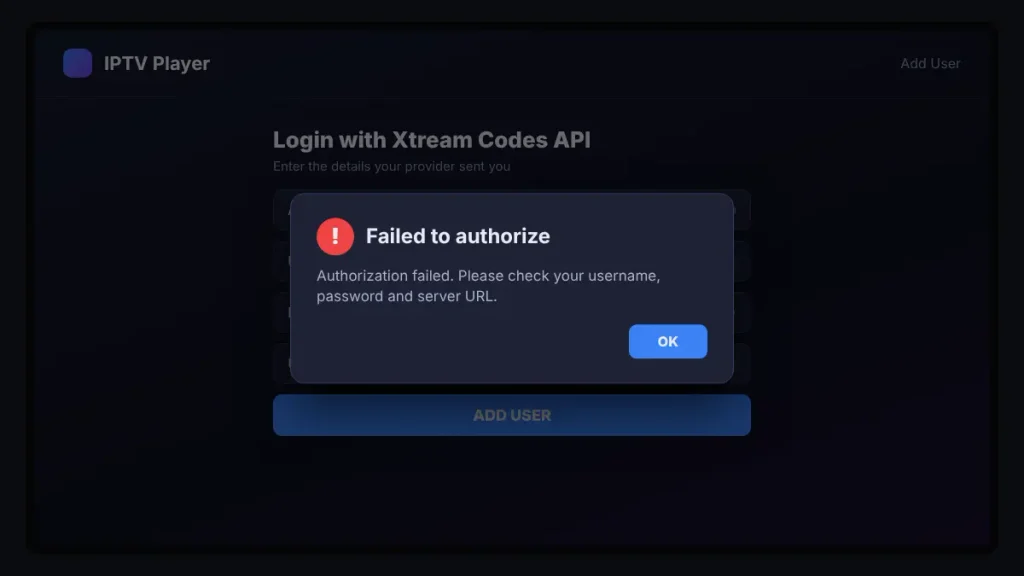
You typed your login into IPTV Smarters, pressed Add User and got “Failed to authorize.” No channels. No hint why. This guide shows you how to find the exact cause in about a minute and fix it on any device.
IPTV Smarters failed to authorize means the server rejected your login. The usual causes are a typo or hidden space in your details, a wrong server URL or port, an expired account or too many devices on one plan. A 60-second browser test tells you which one it is.
Key Takeaways
- The error almost always comes from your login details or your account. The app itself is rarely the problem.
- One special link opened in a browser shows your account status, expiry date and device limit.
- If the same login also fails on a phone hotspot, the problem sits with your account or your provider.
- IPTV Smarters is only a player. It never sells channels, so “free Smarters accounts” are always someone else’s login.
What “Failed to Authorize” Means in IPTV Smarters
It means the app reached a server, sent your username and password and got a “no” back. IPTV Smarters holds no accounts of its own. It is a player that logs into your provider’s server, the same way an email app logs into your mail server.
Think of the app as a hand holding a key. If the door does not open, the hand is rarely the problem. The key is wrong, the lock changed or the room is full.
Most providers use the Xtream Codes login system. When you add a user, the app calls an address on the server named player_api.php with your username and password. The Xtream Codes API documentation lists HTTP 401 as the answer for a failed login, an expired user and a banned user. That is why one short message can hide several different problems. If you are setting up for the first time, our IPTV setup guide shows where each login detail goes.
IPTV Smarters Error Decoder: 7 Login Messages Explained
Each message points to a different first step. Find the exact words you see, then jump to the matching fix.
| Message you see | What it usually means | First thing to try |
|---|---|---|
| Failed to authorize | The server rejected the login: wrong details, an expired account or a full account | Run the 60-second browser test |
| Authorization failed for above host | The server URL in your profile is wrong or is not answering | Check the URL format and port |
| Invalid details / Invalid username or password | Username or password does not match the account | Copy and paste the login again |
| Login failed | A general failure that can be the network or the login | Browser test, then a phone hotspot |
| Your account is expired | The subscription period has ended | Renew or ask your provider |
| Your STB is blocked. Call the provider | A MAG portal has blocked this device’s MAC address | Ask the provider to reset the MAC |
| Login works but channels do not load | The account is fine; the playlist or stream is the problem | Reload the playlist or test in VLC |
The 60-Second Browser Test That Shows the Real Cause
This test asks the server directly, without the app in the way. If the server answers, you see your account details as plain text.
- Open a browser on your phone or computer.
- Type this address and replace the four parts in capitals with your own details:
http://YOUR-SERVER:PORT/player_api.php?username=YOUR-USERNAME&password=YOUR-PASSWORD - Press Enter. You should see a block of text that starts with {“user_info”.
A filled-in example looks like this: http://example-server.com:8080/player_api.php?username=john123&password=abc456
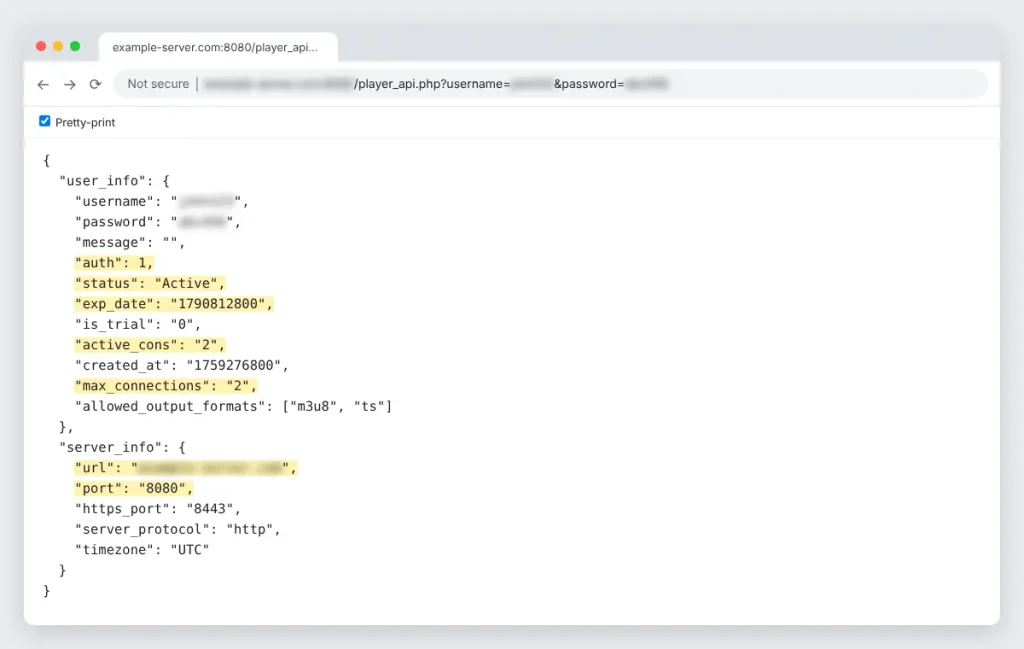
Your password sits inside this link. Run the test only on your own device, clear the browser history afterward and blur the details before you share a screenshot.
How to Read Your Result
The text looks messy, but you only need five fields. Use the browser’s Find tool (Ctrl+F) to jump to each one.
| Field | Example value | What it tells you |
|---|---|---|
| “auth” | 1 | 1 means the login was accepted. 0 or a missing field means the details are wrong. |
| “status” | “Active” | Anything other than Active means an account problem only the provider can fix. |
| “exp_date” | “1790812800” | The expiry date as a Unix timestamp. Paste it into any Unix time converter. This example is October 1, 2026. |
| “active_cons” and “max_connections” | “2” and “2” | When the two numbers match, every device slot on your plan is in use. |
| “url” and “port” (under server_info) | “example-server.com” and “8080” | The real server address. Compare it with what you typed in the app. |
What your result means:
- auth is 1, status is Active and you have a free connection: your account is fine. The problem is in the app or the device, so skip to the device fixes below.
- auth is 0 or the page is almost empty: the username or password is wrong.
- The page shows 401 Unauthorized: the documentation lists this for wrong details, expired accounts and banned accounts. Ask your provider which one it is.
- The page never loads: the URL or port is wrong, the server is down or your network blocks it. Run the three tests in the next section.
Some providers block requests that come from a browser. A blank page is a strong hint, but not proof on its own.
Only Have an M3U Link? Get Your Login From It
Many providers send one long M3U link instead of three separate details. Your Xtream login is hidden inside it.
A typical link looks like this: http://example-server.com:8080/get.php?username=john123&password=abc456&type=m3u_plus&output=ts
- Server URL: everything before /get.php, so
http://example-server.com:8080 - Username: the text after username= up to the next &, so
john123 - Password: the text after password= up to the next &, so
abc456
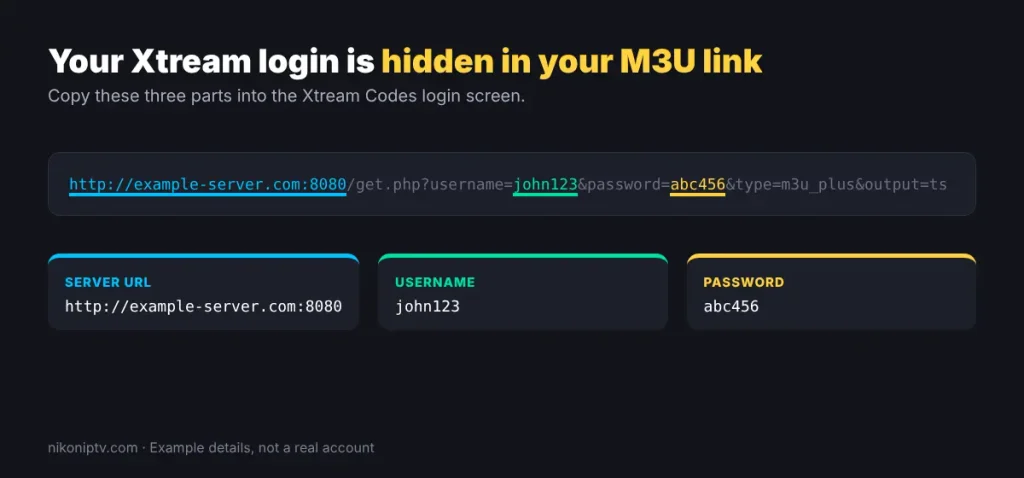
Put these three into the Xtream Codes login screen. Our guide to M3U playlists explains the rest of the link.
App, Network or Provider? 3 Quick Tests
Run these tests in order. Each one removes one suspect, so you stop guessing.
| Test | How to do it | If it works | If it fails |
|---|---|---|---|
| 1. Browser test | Open the player_api.php link above | Account is fine: fix the app or device | Go to test 2 |
| 2. Phone hotspot | Connect your TV or stick to your phone’s hotspot and log in again | Your home network or internet provider is blocking the server | Go to test 3 |
| 3. Second player | Load the same M3U link in VLC | The app or device is the problem | The provider or the account is the problem |
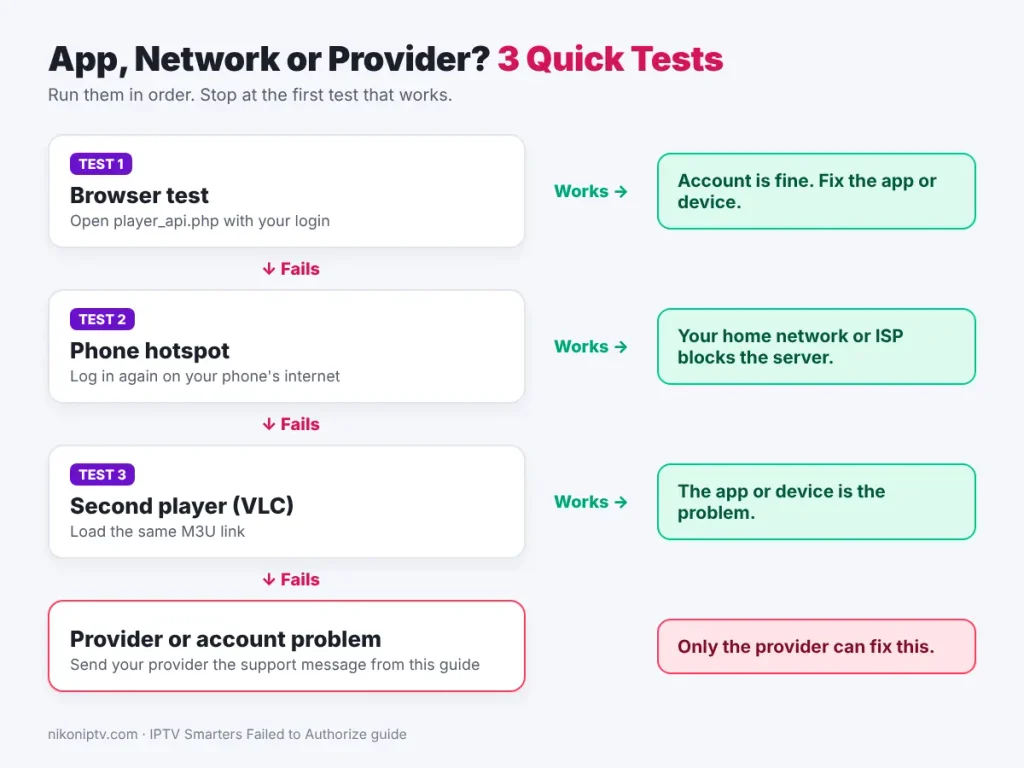
Test 3 takes two minutes with our guide to loading IPTV in VLC.
How to Fix IPTV Smarters Failed to Authorize
Work through these fixes in order. The first four fix the login itself, which is where most of these errors start.
1. Remove Ghost Spaces From Your Login
A hidden space at the start or end of a username or password is enough to fail. You cannot see it on a TV keyboard. It often sneaks in when you copy details from an email or a chat app.
- Delete each field completely and type it again.
- Or paste the details into a plain notes app first, remove any spaces, then copy them again.
- Check upper and lower case: John123 and john123 are different logins.
- Check look-alike characters: zero and the letter O, one and a lowercase L.
2. Fix the Server URL Format
The server URL must match what your provider sent, character for character. These are the mistakes we see most often.
| Wrong | Right | Why it fails |
|---|---|---|
| http://example.com:8080/ | http://example.com:8080 | The extra slash can break the address the app builds |
| http://example.com | http://example.com:8080 | Without a port the app tries port 80 |
| https://example.com:8080 | http://example.com:8080 | The server may not answer on HTTPS; keep the exact start your provider sent |
| http//example.com:8080 | http://example.com:8080 | The missing colon makes the address invalid |
| example.com:8080 | http://example.com:8080 | Without http:// the app may not read it as a web address |
If your provider gave you a backup URL or a separate URL for smart TVs, try that one too.
3. Pick the Right Login Type: Xtream Codes vs M3U
IPTV Smarters offers more than one way to log in. The Xtream Codes option needs three separate fields. The playlist option takes the full M3U link. Pasting a full M3U link into the Xtream URL field always fails. If one method keeps failing, try the other with the same account.
4. Too Many Devices? Check Your Connection Limit
Every plan allows a set number of streams at the same time. If the browser test shows active_cons equal to max_connections, the server turns away the next device.
- Close the app on every other TV, phone and box.
- Wait a few minutes, then log in again. A frozen app can keep its slot for a short time.
- If your family watches on several screens at once, ask your provider about a plan with more connections. That stops this error for good.
5. Set Automatic Date and Time
A wrong clock can break secure connections, because security certificates are checked against today’s date. Turn on automatic date and time, pick your correct time zone and restart the device.
6. Clear the App Cache or Reinstall the App
Old saved data can keep sending a wrong or outdated login. Clear the cache first. If that does not help, clear the data too. Clearing data removes your saved user profiles, so write your login down before you start.
Reinstall only from a source you trust. See the section on where the official app is available below.
7. Flush or Change Your DNS
DNS turns a server name into an address. Sometimes the DNS from your internet provider returns an old or filtered address.
- Restart your router. This clears its stored DNS answers.
- On Windows, open Command Prompt and run
ipconfig /flushdns. - Or set a public DNS on your device or router: Google Public DNS uses 8.8.8.8 and 8.8.4.4. Cloudflare uses 1.1.1.1 and 1.0.0.1.
8. Is Your Internet Provider Blocking IPTV?
If test 2 (the phone hotspot) works but your home internet does not, something on your network blocks that server. There are three common reasons.
- A router or ISP safety filter. Check your router settings and your internet account for parental controls or “safe browsing” filters.
- A security app on your computer. Allow the IPTV app through your firewall or antivirus.
- A court-ordered block. In some countries internet providers must block certain streaming servers by law. In that case the server itself is the problem. Ask your provider about it. We do not recommend hiding your connection to get around a legal block.
9. Send Your Provider This Message
If nothing above works, the provider has to check your account. A clear message gets a faster answer. Copy this and fill in the brackets.
Hi, IPTV Smarters shows “Failed to authorize” on my [device]. Username: [username]. Server URL I use: [URL]. It started on [date and time]. The browser test shows: [auth / status / connections]. It also fails on a phone hotspot: [yes / no]. Please check my account status, my active connections and the correct server URL.
Never post your password in a public group or comment.
Fixes by Device
If your account passed the browser test, the cause is on the device. Start with the steps for yours.
Firestick and Fire TV
- Clear the app’s data: Settings → Applications → Manage Installed Applications → IPTV Smarters → Clear Cache, then Clear Data.
- Restart the stick: Settings → My Fire TV → Restart.
- Then add your user again by typing the details fresh.
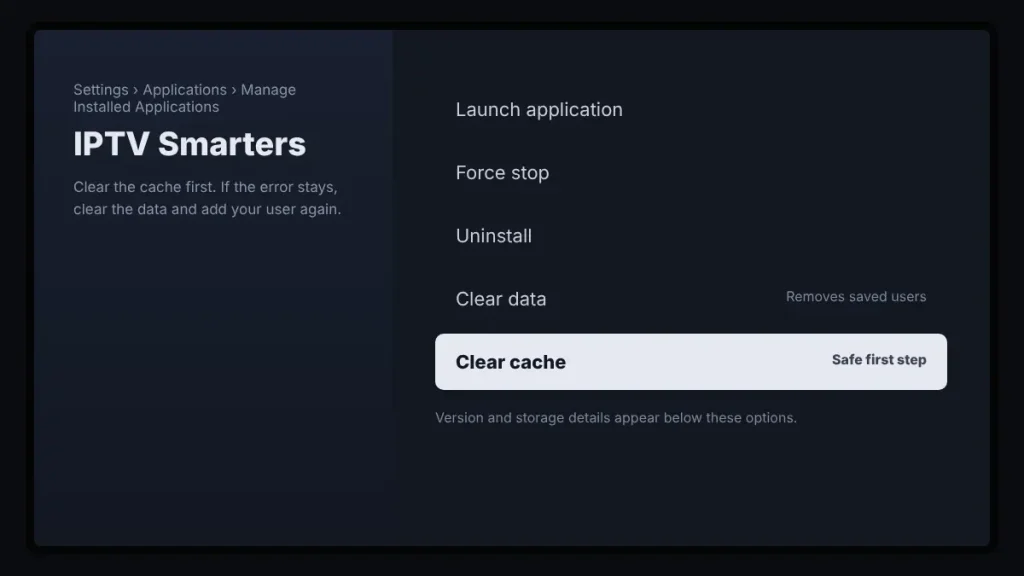
If IPTV Smarters is not working on your Firestick even after this, compare your setup with our Firestick IPTV guide.
Android TV and Android Boxes
- Go to Settings → Apps → IPTV Smarters and choose Clear cache, then Clear data. Menu names change a little between brands.
- Unplug the box for 30 seconds, plug it back in and log in again.
Samsung TV: Authorization Failed for Above Host
On Samsung TVs this message usually shows the server address on the line above the error. That address is your first suspect.
- Check the address against the URL table in fix 2. Look closely for a trailing slash or a missing port.
- Restart the TV fully. Samsung’s own advice is to turn the TV off, unplug it for about a minute, then plug it back in. This does not erase your apps or settings.
- Ask your provider if they have a separate URL for smart TV apps.
- If the browser test passes but the TV app still fails, the TV app is the weak point. A streaming stick or another player app is the quickest way around it.
LG TV: Authorization Failed for Above Host
The same address checks apply on LG. One extra problem is specific to LG: since 2020, owners on the LG webOS forum have reported that IPTV Smarters shows up in the LG Content Store on some models and regions but not on others. An old or unofficial copy of the app is more likely to misbehave.
- Check the URL format and port first.
- Unplug the TV for 60 seconds to clear its memory.
- Delete the app, install it again from the LG Content Store and add your user fresh.
- If the app is not in your store, use a streaming stick or another player app.
Hisense (VIDAA)
Hisense TVs need the same checks: exact URL, correct port and a full restart. If the app keeps failing while the browser test passes, test the same M3U link in another player before you blame your account.
iPhone, iPad and Apple TV
On Apple devices the developer’s app is called Smarters Player Lite. The App Store listing names WHMCS SMARTERS as the seller, shows the app as free with a $1.99 premium upgrade and calls it “strictly a standalone media player.” If your “Smarters” app comes from another developer, it is a look-alike. The login fields and the fixes above are the same. Watching on a phone? Our guide to IPTV on mobile covers other apps too.
Windows and Mac
- Run
ipconfig /flushdnson Windows, then restart the app. - Allow the app through your firewall or antivirus.
- Check that the computer clock is correct.
- Test the same M3U link in VLC. If VLC plays it, your account is fine.
Is IPTV Smarters Pro Still Available in 2026?
The developer’s apps are still out there, but IPTV Smarters has been pulled from Google Play more than once. That matters, because people who cannot find it in a store often install an old build or a look-alike from an unknown website.
- In October 2019 IPTV Smarters was removed from Google Play after a complaint. The developer said it was the third time the app had been taken down from Google Play.
- On December 22, 2022 a court in Madrid ordered Google to remove IPTV Smarters Pro from the Play Store after a request from LaLiga.
Here is what we found when we checked on October 8, 2026.
| Where | What we found |
|---|---|
| Google Play (Android) | The IPTV Smarters Pro listing returned “not found” |
| Apple App Store (iPhone, iPad, Apple TV) | Smarters Player Lite by WHMCS SMARTERS is listed |
| APKMirror (Android app archive) | The newest IPTV Smarters Pro upload is version 3.1.5.1 from September 30, 2022 |
| LG Content Store | Availability varies by TV model and region, based on owner reports |
Before you reinstall, check the developer name. The real app comes from WHMCS Smarters. An app that sells you channels inside the app is not the official player.
“Your STB Is Blocked”: The MAG Version of This Error
This message comes from portal logins, used by MAG boxes and apps that copy them. These logins identify your device by its MAC address instead of a username. “Your STB is blocked. Call the provider” means the portal refused that MAC address.
- Find the MAC address shown on the error screen or in the device settings.
- Send it to your provider and ask them to register it or reset it.
- If you changed your box or reinstalled the app, the MAC address may have changed too.
Only the provider can unblock it. Nothing on your side will fix this one.
Why “Free IPTV Smarters Accounts” Never Work for Long
IPTV Smarters does not come with channels. Apple’s listing for the developer’s app says it does not provide or sell any streaming service. So every “free Smarters account” in a video or a chat group is a login that belongs to someone else.
Thousands of people try the same login. The plan’s connection limit fills in seconds, so everyone gets “Failed to authorize.” Then the owner changes the password or the provider deletes the account. Apps passed around with those logins can also come from unknown sources, which is a security risk on any device.
If you want to test a service before you pay, ask the provider for an official trial instead.
Signs the Problem Is Your Provider
If the browser test fails, the hotspot test fails and VLC fails too, the problem sits with the provider. Other signs:
- The status in the browser test is not Active even though you paid.
- The server URL changes without notice.
- Many users report the service down on the same day. This is usually the answer to “why is IPTV not working today.”
- Support does not reply within a day.
If this keeps happening, it may be time to move on. Before you pick a new service, read what separates legal IPTV services from risky ones.
Want a different player instead? TiviMate and MyIPTV Player use the same login details.
Frequently Asked Questions
Why does IPTV Smarters say failed to authorize?
The provider’s server rejected your login. The most common reasons are a typo or hidden space, a wrong server URL or port, an expired account or a full connection limit. The browser test in this guide shows which one applies to you.
Why can’t I log in to IPTV Smarters Pro?
Check the login type first. The Xtream Codes option needs a server URL, username and password, while the playlist option needs the full M3U link. Then check for spaces, the exact URL and your account status.
Why does my IPTV service say “login failed”?
“Login failed” is a general message. It can mean wrong details or a network that cannot reach the server. Run the browser test, then try a phone hotspot to see which one it is.
How do I fix “authorization failed for above host” on an LG TV?
Check the server address shown above the error for a trailing slash or a missing port. Then unplug the TV for 60 seconds, reinstall the app from the LG Content Store and add your user again. If it still fails, use a streaming stick.
Is my internet provider blocking my IPTV?
Connect your device to a phone hotspot and log in again. If it works there but not at home, something on your home network or your internet provider blocks that server. Check router filters first.
Has IPTV Smarters Pro been shut down?
It has been removed from Google Play at least twice: after a complaint in 2019 and after a Madrid court order in December 2022. On October 8, 2026 its Google Play listing returned “not found.” Apple devices have the developer’s Smarters Player Lite.
Is there a difference between IPTV Smarters and IPTV Smarters Pro?
IPTV Smarters Pro is the name of the Android app. On Apple devices the developer’s app is listed as Smarters Player Lite. Both are players only. None of them include channels.
Is there a better app than IPTV Smarters?
Many people prefer TiviMate on Firestick and Android TV or VLC for quick tests. Your login works in any player that supports Xtream Codes or M3U, so switching apps is an easy way to test.
Conclusion
IPTV Smarters failed to authorize is almost never a mystery once you ask the server directly. Run the 60-second browser test, read auth, status, expiry and connections, then use the three quick tests to see whether the app, your network or your provider is at fault. Fix the login first, the device second.
Still stuck? Tell us the exact message and your device in the comments. We will point you to the right fix.

2 Responses