NikonIPTV

Setup Guide

All in one IPTV Smarters app

What is an IPTV Smarters

IPTV Smarters Pro is a powerful, versatile media player that delivers a smooth, high-quality viewing experience across multiple platforms. Designed for seamless usability, it supports a wide range of formats, including M3U and JSON playlists, enabling users to play their personally owned media from both local storage and remote sources. Whether for live streaming, video-on-demand, or audio playback. IPTV Smarters Pro provides a reliable, high-performance media experience without interruptions.

The following is a comprehensive list of devices supported by IPTV Smarters Pro.

Android

Android Phones, Android TV, Android TV Boxes, Android FireTV Sticks, Nvidia Shields, and other Android sticks or devices.

Windows/macOS

Windows 8/10 and all versions of macOS, including the latest ones.

iOS Devices

IPTV Smarters Player is available on the App Store and supports iPhone, iPad, and Apple TV (tvOS). 

Smart TVs

LG & Samsung (App available on the store to download).

Features Overview

User-Friendly Interface – Intuitive design for effortless media playback
Multiple Playlist Formats – Supports M3U, JSON, and other standard formats
High-Quality Playback – Enjoy smooth streaming with advanced video codecs
Cross-Platform Support – Available on Android, iOS, Windows, macOS, and more
Personalized Experience – Customize settings for an optimized viewing experience
 
Download links:
 

Setup IPTV Smarters via Xtream Codes API

We recommend setup via Xtream Codes API because you will have the Catchup feature this way, and also do not need to add any EPG URL (it will load automatically).

STEP 1:

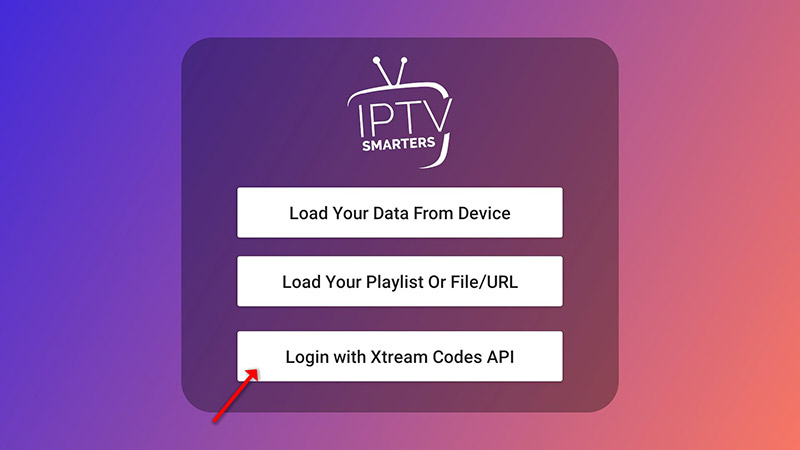
Open the app once downloaded and click on “Add user,” then click on “Login with Xtream Codes API“.

STEP 2:

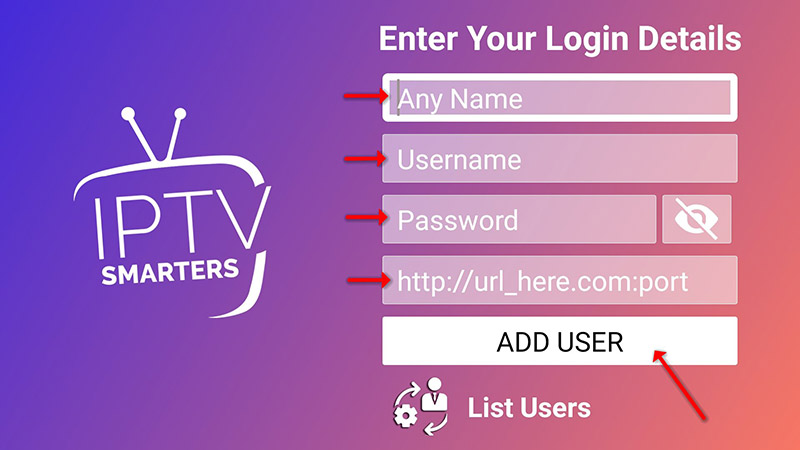
In this step, in the first box, select any name you want for example “IPTV Xtream”. On the second and third boxes, enter the “Username” and the “Password” of your M3U line and the server URL, which can also be found on your M3U line.

Now Click on “ADD USER” to proceed to the next section.

STEP 3:

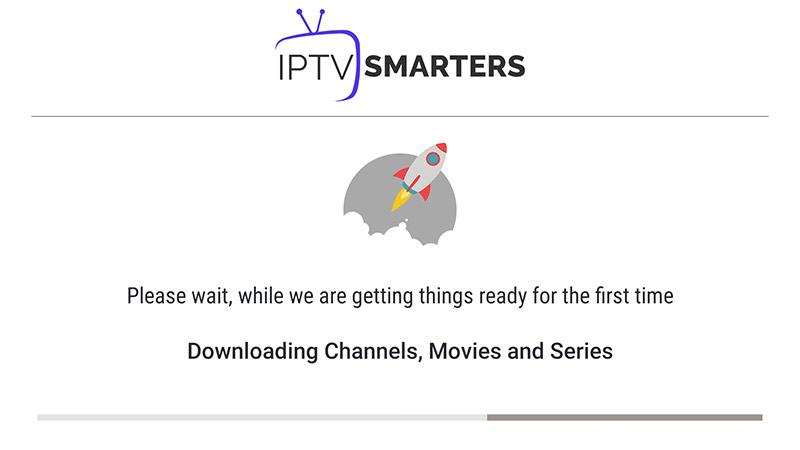
Wait some seconds.

STEP 4:

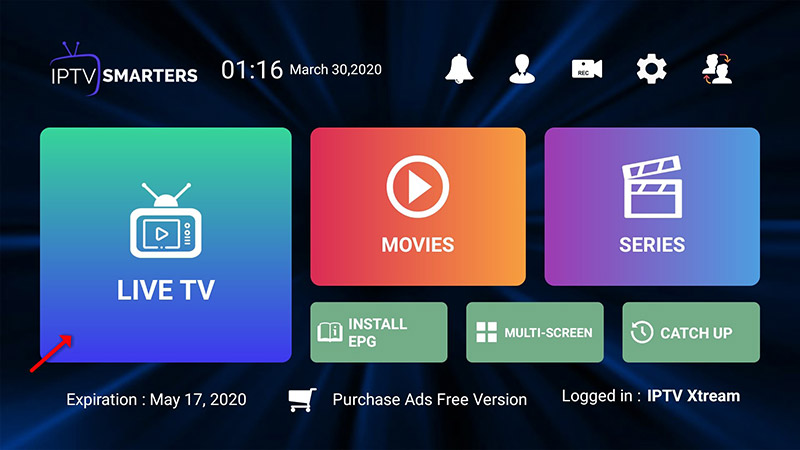
Now click on the “Live TV” icon as depicted in the image via a red arrow.

STEP 5:

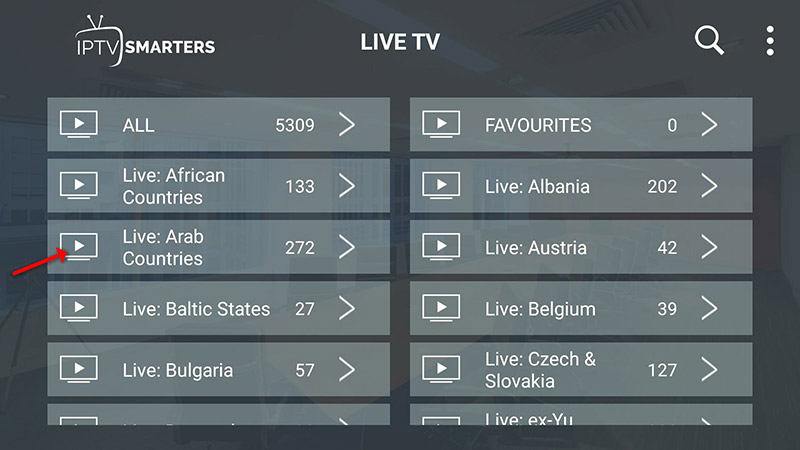
Now you must select the channel group that you want to watch and proceed to the next section.

STEP 6:

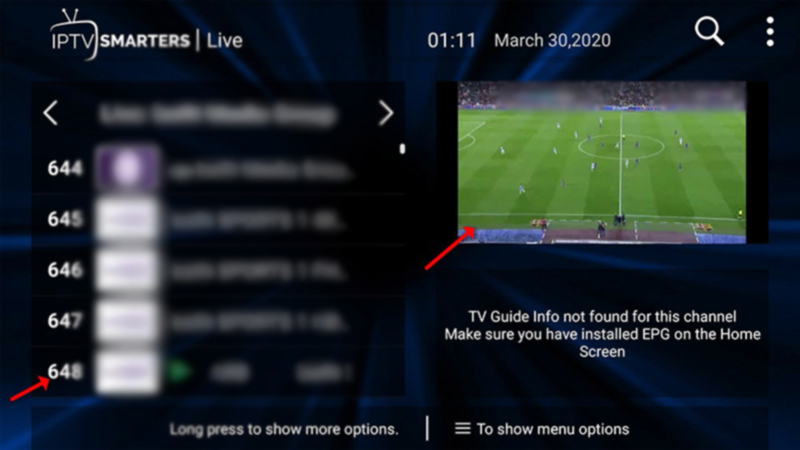
Now you must click on the channel name and then double click on the small screen to turn into the full screen as the final step.

IPTV Smarters is an incredible video streaming player explicitly developed for end-users who want to watch live TV, VOD, Series, and TV Catchup on their Smart TV. This video player app is easy to use yet highly efficient, with a powerful player, an attractive and very impressive layout, and, most importantly, a user-friendly interface.

Installation Guide

Step 1: Access the Source

Press the Source button on your Samsung remote to get started.

Step 2: Download IPTV Smarters Pro

Navigate to Search and type in IPTV Smarters Pro to download the app.
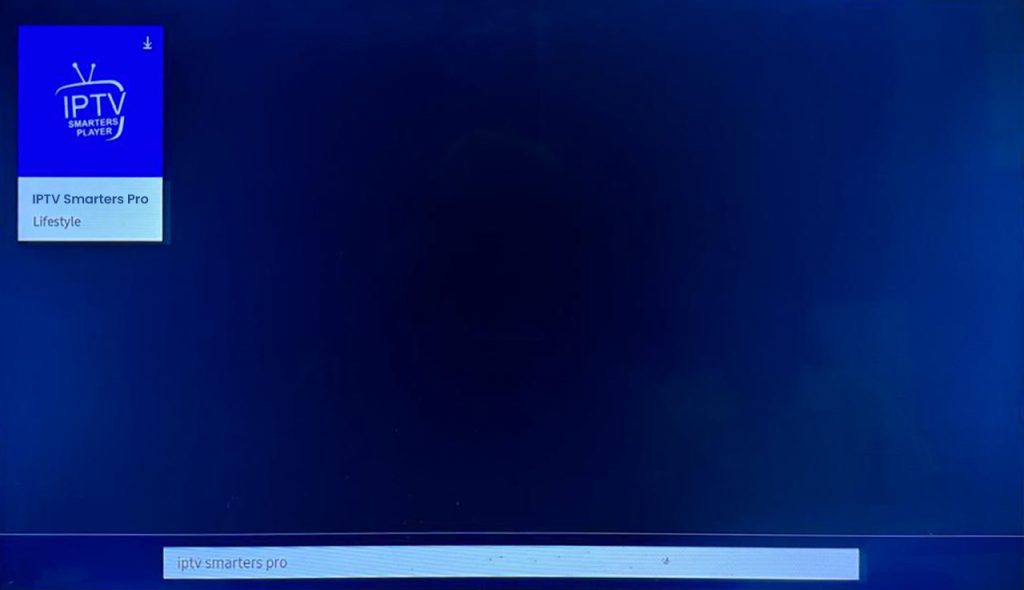
Step 3: Log In to the App

Open the application and log in using your subscription details: Username, Password, and Portal URL.

Important Note:

Ensure that your service provider has their DNS registered with us for optimal performance. 

Please be aware that the Premium Version features are not available on Samsung Smart TVs.

IPTV Smarters is an incredible video streaming player explicitly developed for end-users who want to watch live TV, VOD, Series, and TV Catchup on their Smart TV. This video player app is easy to use yet highly efficient, with a powerful player, an attractive and very impressive layout, and, most importantly, a user-friendly interface.

Installation Guide

Step 1: Access the Home Menu

Press the Home button on your LG remote to begin.

Step 2: Open the LG Content Store

Please navigate to the LG Content Store and open it.

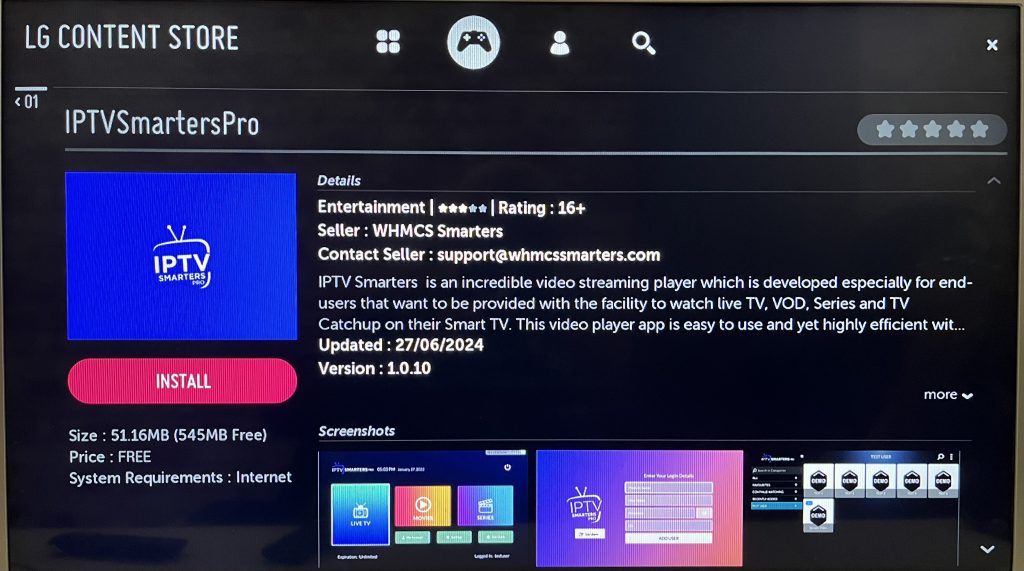
Step 3: Download IPTV Smarters Pro

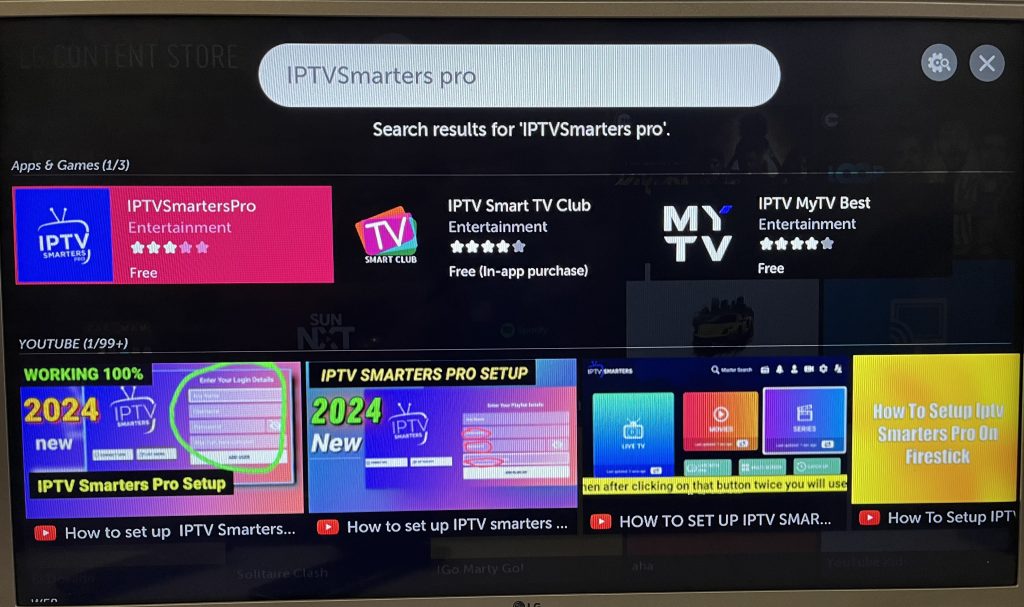
Select the Search button, then type IPTV Smarters Pro to download the app.
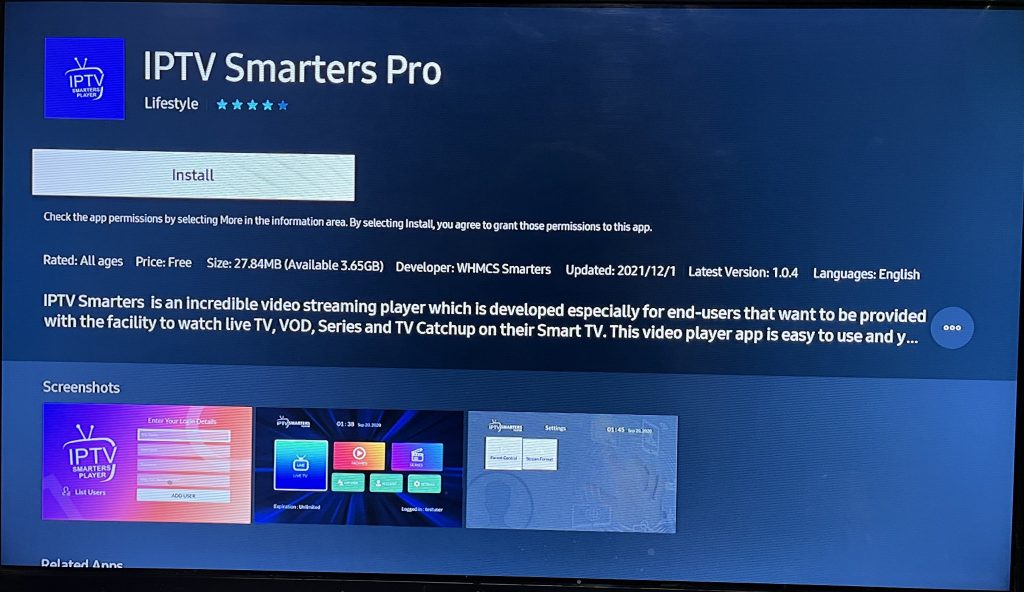
Step 4: Log In to the Application

Open the application and log in using your subscription details: Username, Password, and Portal URL.

Important Note:

Please ensure that your service provider has their DNS registered with us for optimal performance.

Note: Premium version features are not available for LG Smart TVs.

GSE SMART IPTV app is one of the most popular streaming apps for IPTV. The app itself does not include any channels so you’ll need an active M3u playlist to stream live TV channels and movies. You can find free M3U URLs online and in forums but also have the choice to purchase paid M3U subscription which may be more reliable.

For this tutorial to work you’ll need an active M3U playlist. Next, you’ll need to download the GSE SMART IPTV app (here’s the link to the app store)

STEP 1:

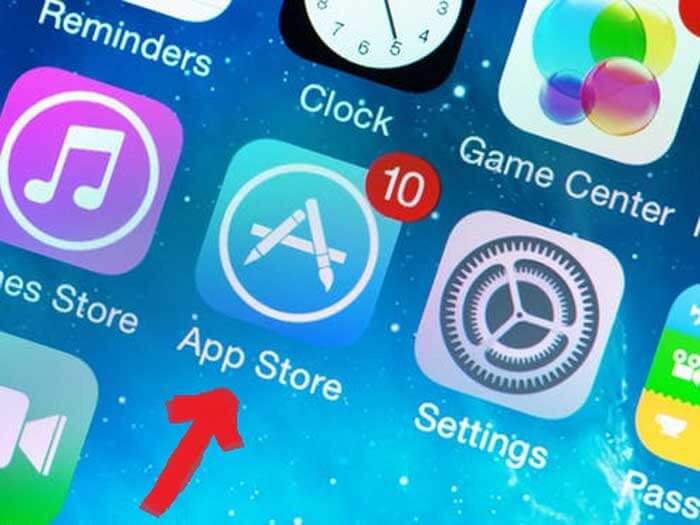
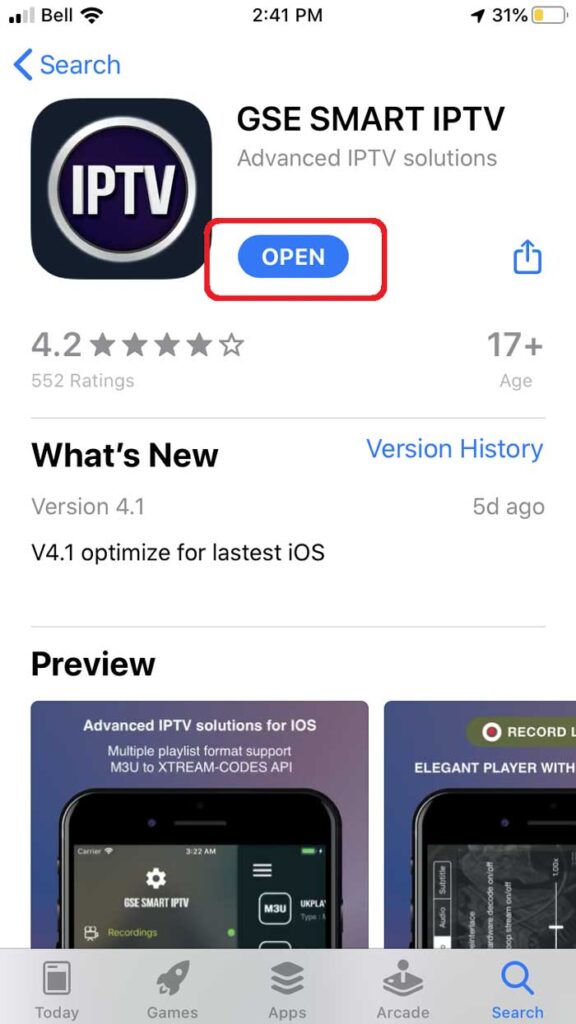
Locate and open the App Store on your iPhone/iPad/Apple TV.

STEP 2:

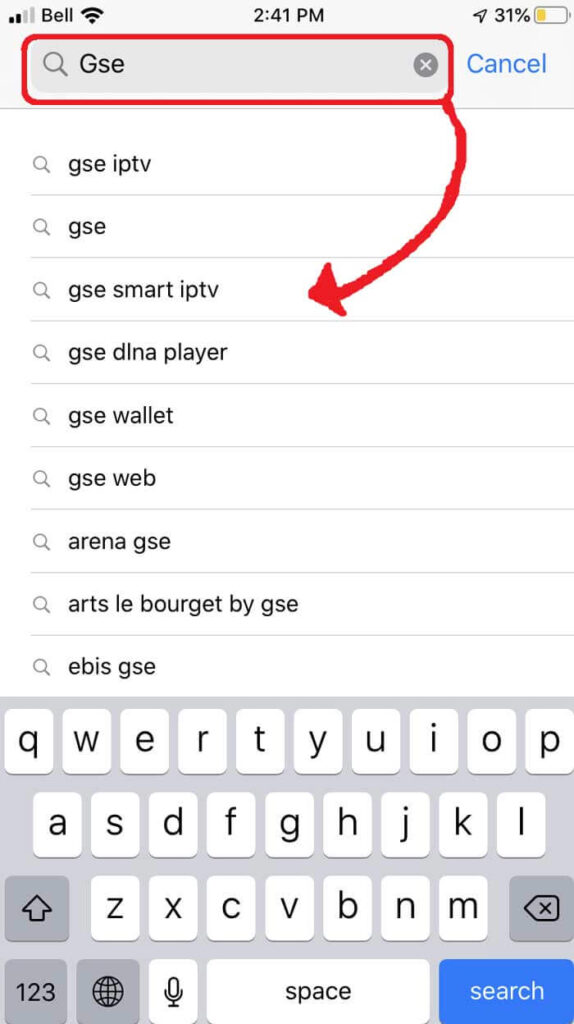
Next, search for the GSE SMART IPTV app.

STEP 3:

Select the GSE SMART IPTV app developed by droidvision. The tagline for the app is ‘Advanced IPTV solutions’. Note the app size is 104.5 MB.

STEP 4:

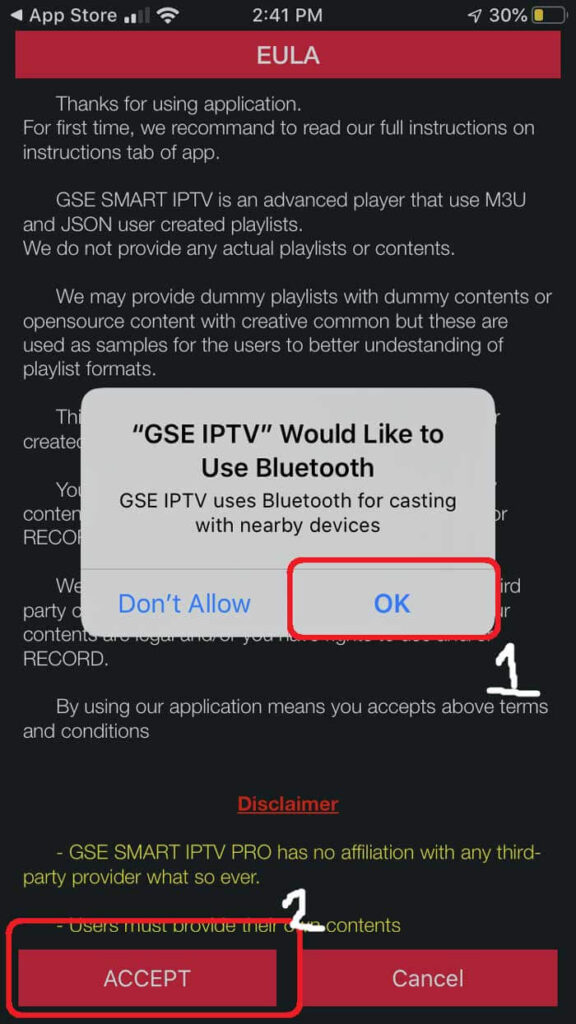
Once you’ve installed the GSE app, go ahead and open it and allow for Bluetooth connectivity. This way you can cast your screen from iPhone or iPad directly to your TV via Google Chromecast.

STEP 5:

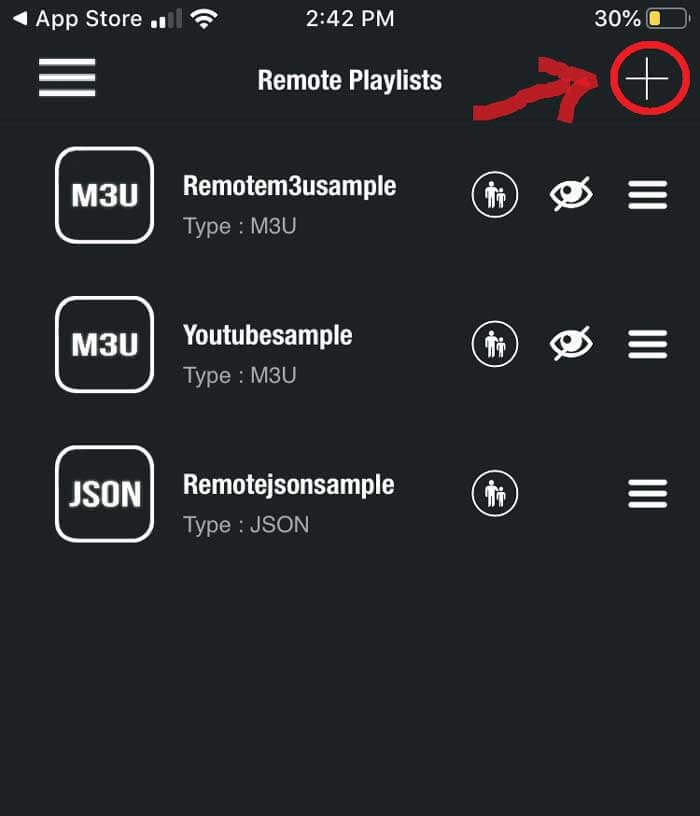
Under the remote playlist section, you will see Plus sign on the upper right-hand side. Press this button. Alternatively, you can go into the menu to add your M3U playlist.

STEP 6:

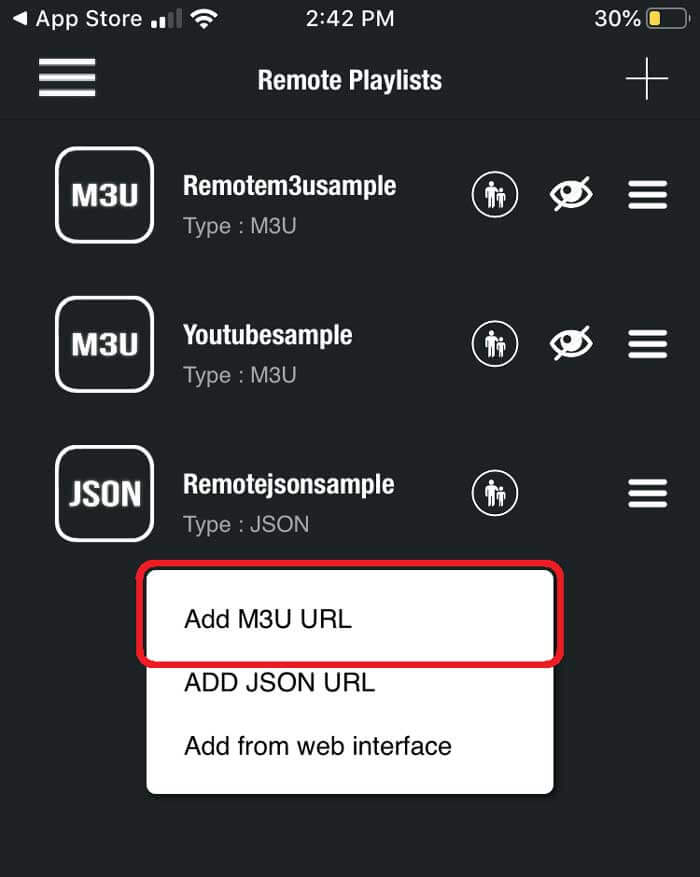
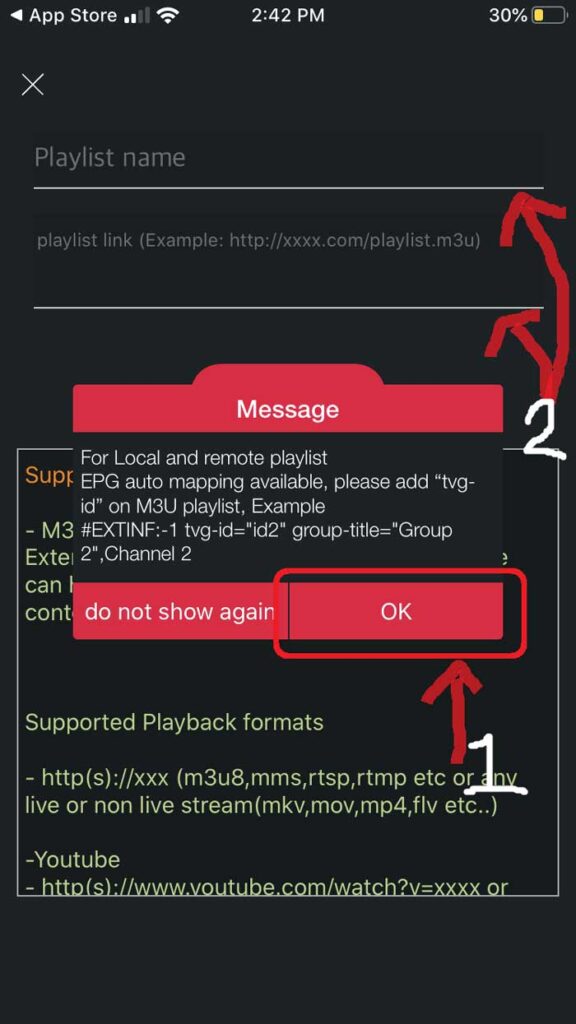
Here it will ask if you’d like to Add an M3U URL, Add Json URL, or add from the web interface. Go ahead and select add M3U URL option.

STEP 7:

For playlist name, we can write anything as this is just for reference for loading this particular URL from the playlist manager. The playlist link is the actual URL we’ll need to copy and paste into here.

STEP 8:

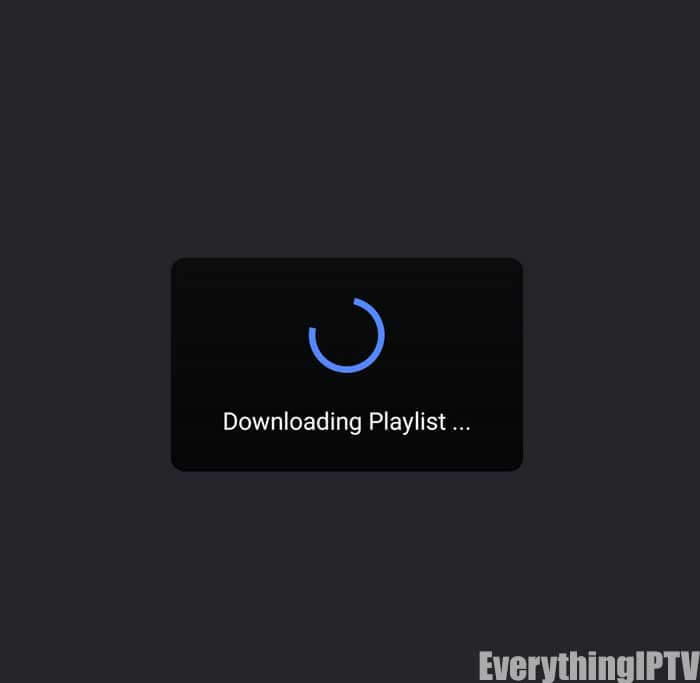
Once entered it should download the playlist. If it does not, go back to the playlist manager menu (SEE STEP 5). Here you should see the M3U URL file we just uploaded. Tap it to load the playlist created.

STEP 9:

You’ll know it’s successfully loaded if you see the different channel groups. You have successfully configured the GSE SMART IPTV app and ready to start streaming!

  1. Send us your mac address (found on the bottom of your box starting with 00:1a:79:xx:xx:xx).
  2. Connect your mag box to the internet with Ethernet cable and skip the next step.
  3. If Wi-Fi go to “system settings” -> “network” “auto (dhcp)” look for your network and provide your password on the last line.
  4. Click home to the “menu” –> “settings” –> “system settings”.
  5. Open “servers” –> “portals” –> set portal 1 name: (put the package name).
  6. Go down to portal URL- set the portal URL (we provided you after you ordered.
  7. Go back and hit restart portal.

System will restart and you are ready to watch.

    1. Start by downloading Kodi based on your operating system at https://kodi.tv/download. In this case, we select “windows”.
    2. Select 64 bit or 32 bit based on your operating system.
    3. After install and open it, click on “add-ons”.
    4. Now click on “download” then select “pvr clients”.

    Note: We are going to download and install the pvr add-on here, after installing no need to go to the “download”.

    You can find the installed add-ons “my add-ons”

    1. Select “stalker client”.
    2. Now click on “install”.
    3. After installing “stalker client” head back to “my add-ons” then “pvr clients” and run the add-on.
    4. Now click on “configure”
    5. Select portal 1, and here adds the server address provided by your iptv distributor and mac address of device. After entering the info accurately, select “ok”

    How to find the mac address and link it to your account:

    Part 1: Find your mac address, this is a number of sorts that you are going to need to tie your device to your subscription.

    • Turn on your device and open Kodi.
    • In the main menu select system and then system info.
    • Select the network tab.
    • Write down the last 6 characters of your mac address (for example: if your mac address is”2a:b3:35:03:e7:36″ then you should write down 03:e7:36)
    1. Select “enable”.
    2. Head back to “TV” and click on “channels”.